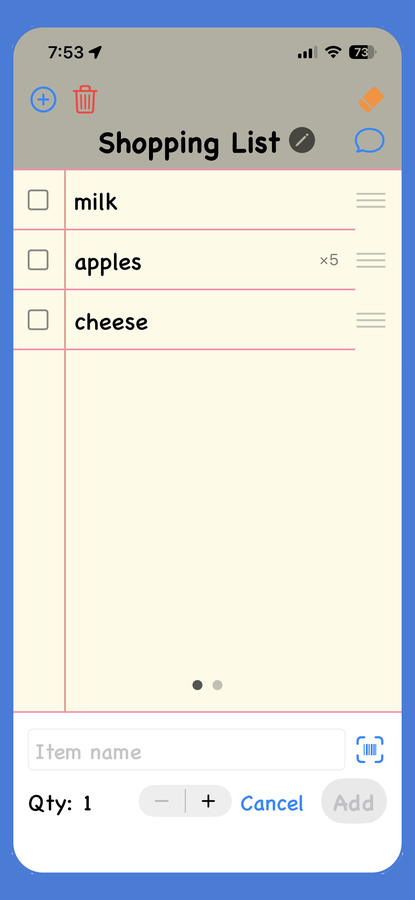

HOW TO USE SHOPINA
The belief that great software should feel simple, intuitive, and purposeful. Too often, apps become overloaded with unnecessary features, confusing interfaces, and workflows that take far more steps than they should.
Building software with a different mindset: focus on what matters most and make it work exceptionally well. Whether it’s streamlining everyday tasks, improving usability, or creating features users actually need, our goal is to deliver applications that are clean, efficient, and easy to use.
The approach is simple — create software that works the way people expect it to: smoothly, reliably, and without frustration.
Keeping the concepts mentioned above, let’s examine the interface to give you a better idea of how to use it. We will start from the top and work our way down.
You will see the following icons;

|
This icon is used to add lists. You can have multiple lists. |

|
This icon is used to delete lists. To use it, go to the list you want to delete, then click this button. |

|
The eraser icon is used if you want to clear the entire list - useful for those who don't want to delete items as they are shopping. |

|
This is the 'share' icon, which is intended for quickly sending a list by text. |

|
This is the edit icon. Click it to edit the list name to something more useful. For instance, having a list for groceries, and another list for hardware, or household items. |

|
Click this to quickly access the barcode scanner. |